Samsung Health and Health Connect: how to sync your steps
Samsung Health sends steps to Health Connect once you open the Health Connect item in its settings and allow step sharing. Steps from a Galaxy Watch go to Samsung Health on your phone first and only then to Health Connect, so when they’re missing, look for the problem on one of those two legs.
8 min read
How the data flows
Samsung describes the chain like this:
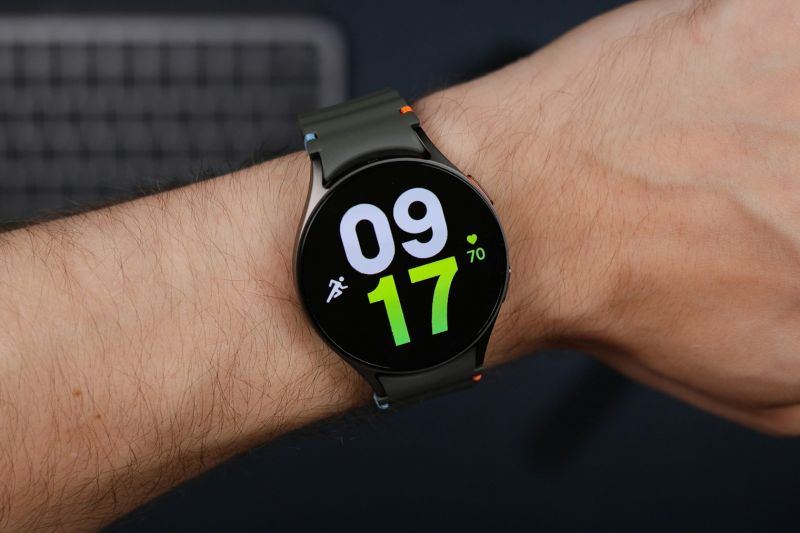
- Galaxy Watch counts steps and sends them to Samsung Health on your phone. Health Connect doesn’t run on the watch; data always goes through the phone.
- Samsung Health on the phone combines steps from the watch and the phone into one count.
- Samsung Health writes new and changed data to Health Connect. It also works the other way: Samsung Health can read data that another app writes to Health Connect.
- Other apps read steps from Health Connect — if you allow them to.
Samsung Health has supported syncing with Health Connect since version 6.22.5 (October 2022). On Android 14 and newer, Health Connect is part of the system; on older versions, Samsung Health offers to install it when you turn syncing on.
How to turn on step syncing
- Open Samsung Health on your phone.
- Open the menu (depending on the version, the three-dot More options icon or the three-line Menu icon) and tap Settings.
- Tap Health Connect. The first time, tap Get started.
- On the permissions screen, choose what Samsung Health may share. Turn on at least Steps, or Allow all, and confirm.
- Check: in Samsung Health → Settings → Health Connect, open App permissions → Samsung Health and make sure steps are allowed.
Labels can differ by app version and language. You can also grant the permission from the other side: search for “Health Connect” in your phone’s Settings and open App permissions → Samsung Health. In that case, Samsung advises opening Samsung Health once afterward to get syncing going.
The general Health Connect guide — where to find it, how permissions and priorities work — is in the article Health Connect: what it is and how to set it up.
What syncs to Health Connect
In its developer documentation, Samsung lists these data types:
- steps (the All steps item in Samsung Health),
- exercise, including calories, distance, heart rate, power, speed and VO2 max,
- heart rate, blood oxygen, blood pressure and blood glucose,
- sleep (sessions and stages),
- weight, body fat, height and basal metabolic rate,
- nutrition.
Two notes. According to Samsung, the calories, distance, speed and similar values that Samsung Health sends to Health Connect come only from recorded exercise — data from its activity tracker isn’t synced (steps are; they’re listed separately). And the scope can change with the Samsung Health version.
Steps from Galaxy Watch
The watch doesn’t send every step right away. According to Samsung, data from the watch usually syncs to the phone when:
- the watch reconnects to the phone,
- you open the Samsung Health home screen on your phone,
- you pull down on the Samsung Health home screen.
So if your afternoon steps are missing in another app, open Samsung Health and pull down on the screen. Only once the steps are in Samsung Health can they move on to Health Connect.
Samsung also points out that the watch and the phone record steps separately and Samsung Health combines them into one count. On some watches, steps are only counted when your hand moves, so some steps go missing when you push a lawnmower, for example.
Why your steps can be counted twice
Samsung Health combines steps from your phone and watch into one count by itself. Doubling in Health Connect typically happens when someone else is writing steps as well:
- On Android 14 and newer, Health Connect can count steps directly from the phone.
- Google Fit or another step app may be writing steps.
- A second watch or band with its own app.
In overlapping periods, Health Connect then takes the steps from the highest-priority source. Phone steps recorded through Health Connect have the lowest priority by default, but it’s a good idea to check the order of the other apps:
- Open Health Connect.
- Tap Manage data → Data sources and priority.
- Select Activity.
- Drag Samsung Health to the top.
For complete peace of mind, let only Samsung Health write steps and turn off step writing for the other apps in Health Connect. To stop the phone counting steps directly in Health Connect, go to Devices → your phone → Steps.
One more trap: removing duplicates by priority applies to aggregated totals. An app that adds up individual entries its own way may show a different number than Samsung Health. That’s down to that app, not your phone settings.
Steps missing from Health Connect: the most common fixes
Work from the start of the chain:
- Update Samsung Health on your phone — and if you have a Galaxy Watch, Samsung Health on the watch, too.
- Check permissions: Samsung Health → Settings → Health Connect → App permissions → Samsung Health → Steps.
- Sync manually: in the Samsung Health settings, find syncing with your Samsung account (Samsung’s guides call it both “Sync with Samsung account” and “Sync with Samsung Cloud”), turn it on and run a manual sync (Sync now).
- Check the watch connection: the watch has to be connected over Bluetooth in the Galaxy Wearable app. Power saving, Airplane mode and Watch only mode limit syncing.
- See whether the steps are in Health Connect: Health Connect → Data and access → Activity → Steps → See all entries. If Samsung Health is there, the problem is in the app that reads the steps — check that it has permission to read steps.
- Give it a moment: data from the watch doesn’t arrive instantly. Open Samsung Health and pull down on the home screen.
- If nothing helps: remove Samsung Health’s permissions in Health Connect and allow them again from the Samsung Health settings.
What other apps get out of it
Once steps from your Galaxy Watch or Samsung phone are in Health Connect, every app you allow to read them can see them. Tada! doesn’t connect to Samsung Health directly — it only reads Health Connect, so all it takes is Samsung Health sending the steps there. And since a day only closes at noon the next day, steps that arrive late from the watch still count. More in the help article Watches, Strava and Garmin.
Keep your Galaxy Watch. Tada! just reads the steps When Samsung Health sends steps to Health Connect, Tada! uses them to recognize an active day and grow your streak. No sign-up, and your steps stay on your phone. Download for iPhone · Download for Android
Got a different watch? See the setup for Garmin and Health Connect or Xiaomi and Health Connect.
Frequently asked questions
Does Samsung Health sync with Health Connect both ways?
Yes. Samsung says Samsung Health writes its new data to Health Connect and also reads data that other apps have written there.
Do I need to set anything up on my Galaxy Watch for Health Connect?
Not directly. Health Connect only runs on the phone. The watch just needs to sync with Samsung Health on the phone.
Why does another app show a different step count than Samsung Health?
Either another source is also writing steps to Health Connect, or that app adds up the entries its own way. Check Data sources and priority and the step-writing permissions of the other apps.
Sources
- Samsung Developer (2025). Accessing Samsung Health Data through Health Connect. Samsung Developer Blog. link
- Samsung Developer (n.d., accessed October 8, 2026). Health Connect FAQ to Access Samsung Health Data. link
- Samsung (n.d., accessed October 8, 2026). View your step count in Samsung Health. Samsung US Support. link
- Samsung (n.d., accessed October 8, 2026). Samsung Health data is not syncing between Galaxy watch and phone. Samsung US Support. link
- Samsung (n.d., accessed October 8, 2026). Sync your data in Samsung Health. Samsung US Support. link
- Samsung (n.d., accessed October 8, 2026). Sync your data in Samsung Health on your Galaxy phone. Samsung Canada Support. link
- Google (n.d., accessed October 8, 2026). Manage your Health Connect data. Android Help. link
- Google (n.d., accessed October 8, 2026). Find your Health Connect data. Android Help. link
- Google (n.d., accessed October 8, 2026). Track your steps with Health Connect. Android Help. link
- Google (n.d., accessed October 8, 2026). Troubleshoot Health Connect & send feedback. Android Help. link
- Android Developers (2026). Read aggregated data. link
Cover photo: Daniel Romero / Unsplash


