Xiaomi steps not showing up in Health Connect? Here’s how to fix it
Steps from a Xiaomi band or watch reach Health Connect through the Mi Fitness app (Xiaomi Wear), but only if you turn writing on and the system doesn’t put the app to sleep. Steps from a Xiaomi phone without a band can be recorded by Health Connect itself on Android 14 and newer (with current system updates).
9 min read
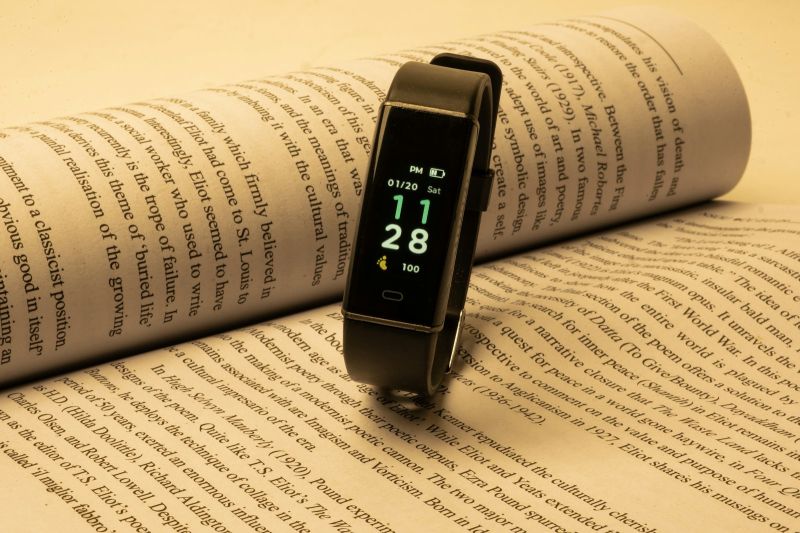
First, figure out where your steps come from. “Xiaomi” can mean the phone, the band, or both — and each case gets fixed in a different place.
| What you have | What counts the steps | What writes them to Health Connect |
|---|---|---|
| Xiaomi Smart Band, Redmi Watch, Xiaomi Watch | the band / watch | the Mi Fitness app (Xiaomi Wear) |
| Older Mi Band with Zepp Life | the band | we couldn’t verify a direct connection — see below |
| Just a Xiaomi, Redmi or POCO phone | the phone | Health Connect itself (Android 14+), or another app |
Band or watch with Mi Fitness
Mi Fitness is Xiaomi’s official app for its current bands and watches. In the app’s Google Play listing, Xiaomi explicitly lists a Health Connect permission for syncing fitness and health data. The app is also on the list of Health Connect–compatible apps that Google’s help links to. According to Xiaomi, newer models such as the Xiaomi Smart Band 8 or 10 pair only with Mi Fitness, not with Zepp Life.
How to turn on step syncing
Xiaomi’s official help describes connecting to other apps through the Third-party data section. It doesn’t name Health Connect there, but guides from users and from other apps’ developers look for it in exactly that spot, or in the Mi Fitness settings. The labels below come from Xiaomi’s English help and can differ by app version.
- In Mi Fitness, open Profile → App settings → Sync with the cloud and turn cloud sync on. Xiaomi’s help lists it as a requirement for syncing with third-party apps.
- Go back to Profile and open Third-party data.
- Select Health Connect and confirm the connection. If Health Connect isn’t there, check the app’s settings.
- On the Health Connect permissions screen, allow writing for at least Steps, plus any other data types Mi Fitness offers if you want them.
- Open Health Connect → App permissions → Mi Fitness and check that writing steps is turned on.
If you can’t find Health Connect anywhere in Mi Fitness, update the app from Google Play.
Check that the steps arrived
Open Health Connect → Data and access → Activity → Steps → See all entries. If you see entries from Mi Fitness, writing works and the problem is in the app that reads the steps. If you don’t, move on to the next section. Where to find Health Connect on your phone and how it works is explained in our Health Connect guide.
Steps counted twice, or not at all
Steps can be written at the same time by the band via Mi Fitness and by the phone (via Health Connect or Google Fit). Where they overlap, Health Connect takes the data from the app with higher priority. Open Manage data → Data sources and priority → Activity and drag Mi Fitness to the top. Steps that Health Connect records directly from the phone have the lowest priority by default, but Google Fit or another app may sit above Mi Fitness — check the order.
Why Mi Fitness stops syncing: background restrictions
Xiaomi itself says that both the band connection and data syncing depend on Mi Fitness running continuously in the background. When the system kills the app, the band disconnects and the data doesn’t reach the phone until the connection is restored. The band keeps counting steps on its own — it just has no one to hand them to.
In its help for the Smart Band 10, Xiaomi recommends this:
- In Mi Fitness, open Device → Notifications and calls → Background permissions and go through all four items: turn off Battery saver, set background activity to No restrictions, allow autostart and turn on Lock the app in background.
- For the Xiaomi 15 with HyperOS 2.0, Xiaomi gives the path Settings → Battery → Mi Fitness → No restrictions. On other models it’s usually similar.
- According to Xiaomi, you’ll also find autostart under Settings → Apps → Background autostart.
- Don’t swipe the app away from the recent apps list.
Labels differ by HyperOS or MIUI version and by language. If you can’t find the path, type “battery,” “autostart” or “Mi Fitness” into the search bar in Settings. In short, you’re looking for three things: battery set to “no restrictions,” autostart allowed, and the app locked in the background.
When steps are missing, open Mi Fitness and let it sync. That restores the connection to the band and transfers the data.
Older Mi Band with Zepp Life
Zepp Life (formerly Mi Fit) handles older Mi Band models. Unlike Mi Fitness, its Google Play listing doesn’t mention Health Connect. Older guides connect Zepp Life to Health Connect in a roundabout way via Google Fit (in Zepp Life, Profile → Add accounts → Google Fit; then turn on Health Connect sync in Google Fit).
That route has an expiry date, though: Google supports the Google Fit APIs only until the end of 2026. If your band can be paired with Mi Fitness (it depends on the model), that’s the safer long-term option. Xiaomi can also move your Zepp Life history into Mi Fitness, steps included (Mi Fitness → Profile → Third-party data → Zepp Life → Transfer). We couldn’t verify a direct Zepp Life connection to Health Connect in official sources. If you find one in the app, use it.
Just a Xiaomi, Redmi or POCO phone
Without a band, the phone counts your steps. If a built-in app or widget shows them to you, that doesn’t mean it sends them to Health Connect. Xiaomi doesn’t say so anywhere in its official help, so don’t count on it — check in Health Connect.
Two routes are more reliable:
- Android 14 and newer: Health Connect can record steps from the phone on its own. It starts as soon as an app gets permission to read steps. You’ll then see the entries in Health Connect under your phone’s name. Google recommends installing the latest Google Play system update for this.
- Android 13 and older: you need an app that counts steps on the phone and writes them to Health Connect. Google Fit is one of them (Profile → Settings → Sync Fit with Health Connect).
You’ll find your Android version in the phone info section of Settings. On Xiaomi phones, the easiest way to find Health Connect is to search for “Health Connect” in Settings.
If you also wear a band, steps from the phone and the band overlap. Let the priority in Health Connect decide (band higher), or turn off phone step tracking in Health Connect: Devices section → your phone → turn off Steps.
What this means for apps that read steps
Apps that read Health Connect only see what’s actually in it. That goes for Tada! too: it doesn’t connect to Xiaomi, it only reads Health Connect. Once steps from your band or phone are there, they count toward your active day — and since a day only closes at noon the next day, steps that arrive late still make it. More details in the help article Watches, Strava and Garmin.
Keep your Xiaomi band. Tada! just reads its steps When Mi Fitness writes to Health Connect, Tada! uses those steps to recognize an active day and grow your streak. No sign-up, no ads. Download for iPhone
Checklist
- I know where my steps come from: a band with Mi Fitness, Zepp Life, or just the phone.
- Mi Fitness is up to date and cloud sync is on.
- Health Connect is connected in Mi Fitness (Profile → Third-party data, or the app settings).
- Mi Fitness is allowed to write steps in Health Connect.
- All Background permissions in Mi Fitness are set: no battery saver, no restrictions, autostart, locked.
- The band is paired and Mi Fitness has synced at least once today.
- Health Connect → Steps → See all entries shows entries from Mi Fitness.
- In Data sources and priority, Mi Fitness is above the phone.
- The app that reads steps is allowed to read steps in Health Connect.
If syncing drops out for a whole day, it’s not the end of the world — one slip won’t break your habit. Wearing a Galaxy Watch instead of a Xiaomi? The setup is different — see Samsung Health and Health Connect.
Frequently asked questions
Does Mi Fitness also write workouts to Health Connect?
When you connect, Health Connect shows you the data types Mi Fitness asks for, and you choose which ones to allow. The list can change with the app version, so check the permissions screen itself.
Why do my steps arrive late?
When the system kills Mi Fitness, data from the band only reaches the phone once the connection is restored, for example when you open the app. The Background permissions settings above help.
Sources
- Xiaomi (2026). Mi Fitness (Xiaomi Wear). Google Play. link
- Xiaomi (n.d., accessed October 8, 2026). Xiaomi Smart Band 10 FAQ. Xiaomi Global Support. link
- Xiaomi (n.d., accessed October 8, 2026). Does the Mi Fitness App support third-party data access on the Xiaomi Smart Band 9 Active? Xiaomi Global Support. link
- Xiaomi (n.d., accessed October 8, 2026). Xiaomi Smart Band 8 FAQ. Xiaomi Global Support. link
- Xiaomi (n.d., accessed October 8, 2026). Can the data in the Zepp Life APP be transferred into the Mi Fitness APP? Xiaomi Global Support. link
- Zepp Health / Huami (2026). Zepp Life (Formerly MiFit). Google Play. link
- Google (n.d., accessed October 8, 2026). Health Connect — compatible apps. Google Play. link
- Google (n.d., accessed October 8, 2026). Manage your Health Connect data. Android Help. link
- Google (n.d., accessed October 8, 2026). Find your Health Connect data. Android Help. link
- Google (n.d., accessed October 8, 2026). Track your steps with Health Connect. Android Help. link
- Google (n.d., accessed October 8, 2026). Health Connect on Google Fit. Google Fit Help. link
- Android Developers (2026). Fit migration guide. link
- Android Developers (2026). Track steps. link
- Welltory (n.d., accessed October 8, 2026). How to connect Mi Band. Welltory Help Center. link
- Beyond IFTTT (2025). Trying to link Mi Fitness app with Health Connect — step data (using Xiaomi Smart Band 9). Blog. link
- YuMuuv (n.d., accessed October 8, 2026). Connecting Mi Fitness to Yumuuv. YuMuuv Help. link
Cover photo: Lal Mahammad / Unsplash


