How to connect Garmin to Health Connect
Garmin Connect sends data to Health Connect directly, with no third-party apps in between. It works on Android 14 and newer: in Health Connect, you allow Garmin Connect to write, and the data then arrives after every watch sync.
8 min read
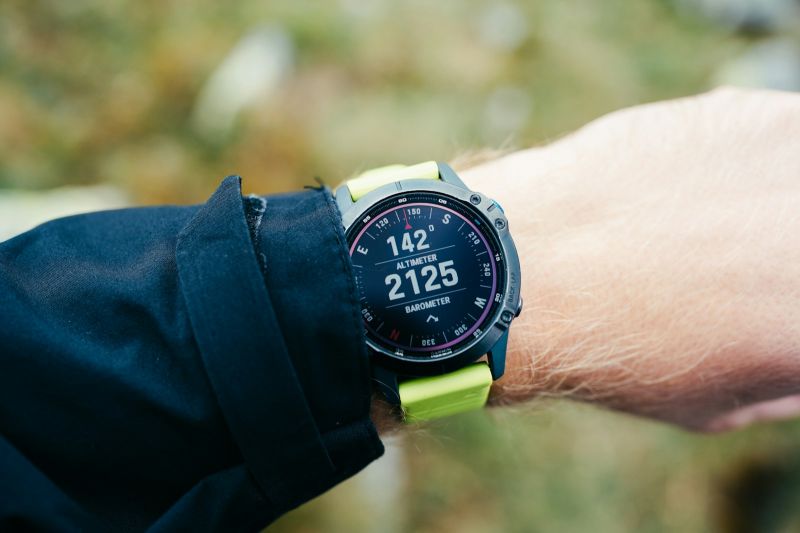
A direct link between Garmin Connect and Health Connect is new as of summer 2025. In a press release dated July 8, 2025, Garmin mentioned syncing activity data from Garmin Connect to other apps via Health Connect. Google announced the support in its August developer newsletter.
The transfer is one-way. Garmin writes data to Health Connect but reads nothing from it. And nothing switches on by itself — you have to grant the permissions manually.
If Health Connect is new to you, start with the general guide Health Connect: what it is and how to set it up. On iPhone, the setup is different: How to connect Garmin to Apple Health.
What you need
- Android 14 or newer. Garmin says sharing to Health Connect only works on Android 14 and newer. Since Android 14, Health Connect is built right into the system settings.
- The latest Garmin Connect from Google Play.
- Your personal phone profile. According to Google, Health Connect doesn’t support multi-user profiles, such as an Android work profile.
What about Android 13 and older? There, you can install Health Connect from the Play Store and other apps can use it. But Garmin only lists sharing from Garmin Connect for Android 14 and up.
Where to find Health Connect
On Android 14 and newer, Health Connect is tucked away in the system settings. Google gives the path Settings → Security and privacy → Privacy Controls → Health Connect. According to Garmin, the Health Connect screens vary by phone model, which is why Garmin links to Google’s help instead of writing its own guide. If you can’t find the path, type “Health Connect” into the search bar in Settings.
Connecting step by step
Garmin doesn’t publish a specific path for its Android app. The Health Connect side, on the other hand, is well documented:
- Open Health Connect.
- If you see a welcome screen, tap Get Started.
- Under Permissions and data, tap App permissions.
- Select Garmin Connect.
- Turn on Allow all, or pick the individual data types Garmin should write. Allow all is the safest choice — nothing important stays switched off by mistake.
You can also start the connection from Garmin Connect: look for a Health Connect item in the app’s settings (usually among connected apps) and confirm the permissions it offers. Garmin doesn’t describe this path in its help, and labels can differ by app version and language.
Google adds that some apps want you to start syncing on their side. If connecting from Health Connect doesn’t work, try starting it from Garmin Connect.
What data Garmin writes to Health Connect
Garmin’s help splits the data into two groups: activity data and all-day health (wellness) data.
| Activity data | All-day data |
|---|---|
| steps | steps and step distance |
| distance | floors climbed |
| active and total calories burned | total calories burned |
| heart rate | heart rate |
| speed | sleep stages |
| elevation | weight |
| cycling cadence | body fat |
| swimming strokes |
Garmin doesn’t explicitly name the workout record itself in its list. Google’s help for the Google Health app, however, says that a workout summary comes through from Garmin via Health Connect. The map, the route and details like lap splits don’t.
Also missing from Garmin’s list: Body Battery, stress, training load and Garmin’s other in-house metrics. Those stay in Garmin Connect only.
When the data shows up
According to Garmin, data is written to Health Connect after every successful sync between the watch and Garmin Connect. If the watch hasn’t synced for a while, Health Connect has nothing to show. In its help for the Google Health app, Google advises syncing your watch with Garmin Connect regularly, otherwise the data won’t arrive on time.
So after a workout, open Garmin Connect and wait for the sync to finish. From then on, every app with read access in Health Connect can read the data.
Steps from the phone and the watch: which one wins
On Android 14 and newer, Health Connect can count steps directly from the phone. According to Google, it starts as soon as an app gets permission to read steps. Health Connect then has steps from two places: the phone and Garmin.
It merges them. Where entries overlap, priority decides. Google gives an example: if two apps write steps for the same hour, the count from the one higher in the order is used. Phone steps have the lowest priority by default, so Garmin should win without you doing anything. The order is still worth a check.
To check and change it:
- In Health Connect, tap Manage data → Data sources and priority.
- Select the Activity category.
- Drag Garmin Connect to the top by its handle.
- Next to your phone, the More icon lets you move it down in priority or remove it from the step total entirely.
You can also switch off phone steps completely, in the Devices section for that phone. Health Connect then stops storing them.
One thing to watch out for: according to Google, some apps don’t read the merged total but all the individual entries, and merge them in their own way. So if only one app shows double the steps, that’s a question for its support team. Google offers a simple fix: let only one app write a given data type and remove write permission from the others.
Using Samsung Health as well? How to get it to play nicely with Health Connect is covered in Samsung Health and Health Connect.
Who sees your Garmin data afterward
Once Garmin writes to Health Connect, apps with read access can read the data, too. Tada! is one of them: it doesn’t connect to Garmin; it takes steps and workouts from Health Connect and counts your active days from them. All it needs is permission in Health Connect to read Steps and Exercise (Health Connect’s name for workouts).
Keep your watch, your streak keeps going Tada! reads Health Connect, so steps and workouts from your Garmin count toward your active days with no extra pairing. No sign-up, no ads. Download for iPhone
Not working? Go through this list
- Android version. Below Android 14, Garmin doesn’t offer sharing to Health Connect.
- Permissions. Health Connect → App permissions → Garmin Connect. Are steps and the other data types turned on?
- Restart the connection. Google recommends turning the permissions off and turning sync back on through the connected app.
- Is Garmin writing at all? Health Connect → Data and access → Activity → Steps → See all entries. You should see entries from Garmin Connect.
- Recent access. In Health Connect, under Recent Access, tap See all recent access. You’ll see the apps that read or stored data in the past 24 hours.
- Watch sync. Open Garmin Connect and let the watch finish syncing.
- Priority. If the step count looks off, check Data sources and priority.
- Work profile. Health Connect doesn’t work with it.
- The app that reads. It needs read access in Health Connect. Otherwise Health Connect has the data, but the app can’t see it.
Frequently asked questions
Does Health Connect send data back to Garmin?
No. Garmin says the transfer is one-way and Garmin reads nothing from Health Connect.
Do I need Health Sync or another bridge app?
Not on Android 14 and newer. Garmin Connect writes to Health Connect by itself.
Does it work on Android 13?
Garmin lists sharing to Health Connect only for Android 14 and newer. On an older phone, Garmin data won’t transfer this way, even if you install Health Connect from the Play Store.
Sources
- Garmin (n.d., accessed October 8, 2026). Sharing Your Garmin Connect Data With Health Connect. Garmin Customer Support. link
- Garmin (2025). Garmin smartwatches add turn-by-turn directions with Google Maps. Garmin Newsroom. link
- Google (2025). Health & Fitness Google Developer Newsletter — August 2025. Android Developers. link
- Google (n.d.). Learn about Health Connect. Android Help. link
- Google (n.d.). Get started with Health Connect. Android Help. link
- Google (n.d.). Manage connected apps in Health Connect. Android Help. link
- Google (n.d.). Manage your Health Connect data. Android Help. link
- Google (n.d.). Track your steps with Health Connect. Android Help. link
- Google (n.d.). Troubleshoot Health Connect & send feedback. Android Help. link
- Google (n.d.). Find your Health Connect data. Android Help. link
- Google (n.d.). Connect third-party devices & apps to the Google Health app. Google Health Help. link
Cover photo: Yevhenii Dubrovskyi / Unsplash


